Go to: Manage > Attendance (Admins & Managers Only)
Getting Started with Attendance

Before you can take attendance, you need to create Concerts and enable attendance tracking for your rehearsals in the Calendar. Be sure to check out the article on Creating Calendar Events.
Once you've enabled attendance tracking for events in the calendar, c'mon back here to learn about actually taking attendance!
Managing a Concert Roster
-
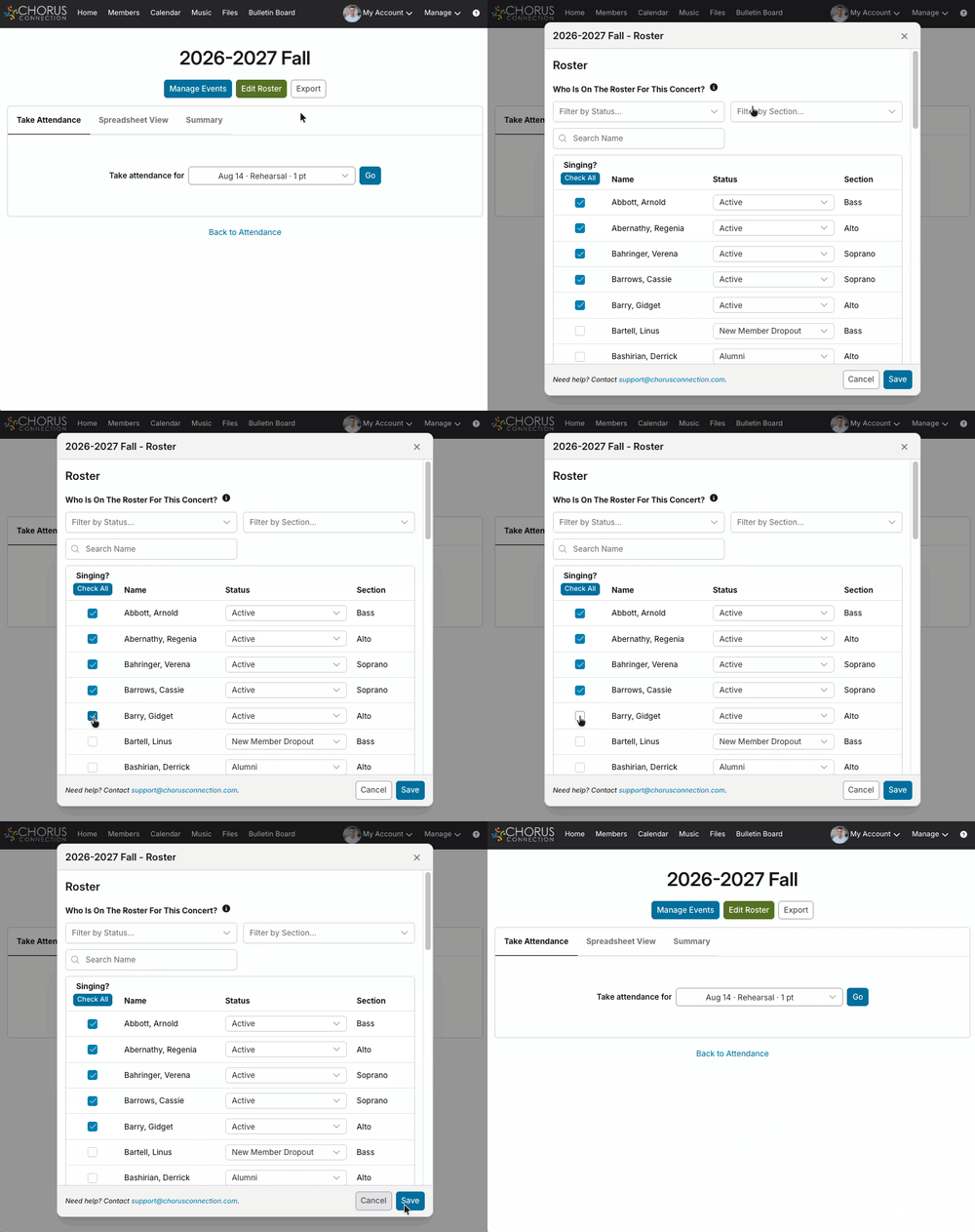
Adding and removing singers on a concert roster: Navigate to the concert's attendance sheet by going to Manage > Attendance and choose Take Attendance for the concert cycle under the [︙] button. Click the Edit Roster button and add/remove a checkmark next to each singer to change their participation in the concert cycle. Use the Filter by Status and Filter by Section options to make it easy. Click the Save button when you're finished.
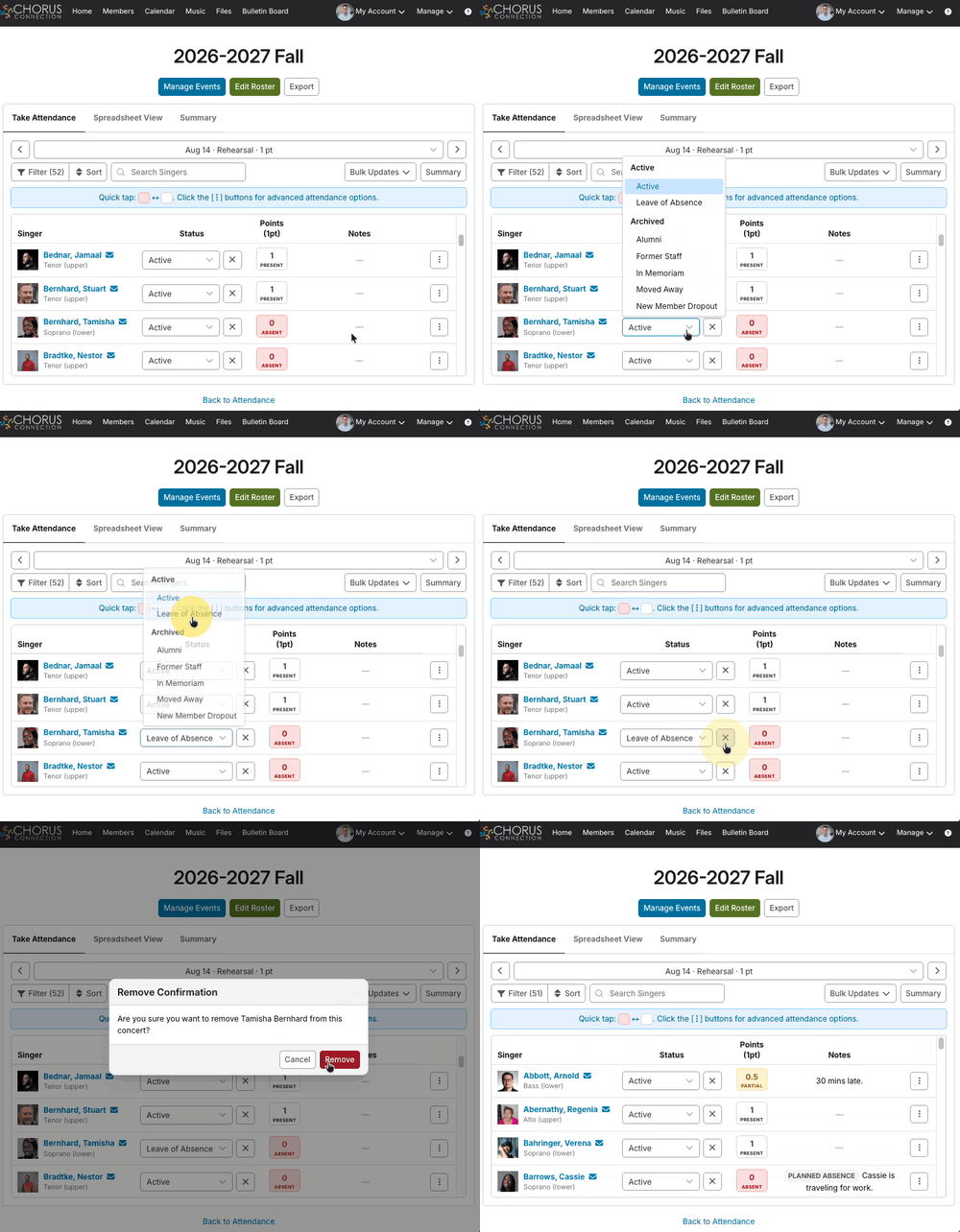
- Updating singer statuses in the attendance sheet: You'll often learn that a singer isn't participating in a concert cycle while you're taking attendance. You can update a singer's status by using the Status drop-down next to each member's name in the attendance list view. Note: You can quickly remove them from the roster at the same time, just click the "remove from concert" X on the attendance sheet.
Taking Attendance
Go to Manage > Attendance and tap the [︙] button next to your current concert cycle. Choose Take Attendance. Choose your date/rehearsal from the dropdown at the top and click Go. The system will automatically suggest the most recent past or current rehearsal.
Note: On mobile, you'll just tap the name of the concert cycle and you'll go directly to the Take Attendance page.
- Sorting & Filtering: Sort your attendance list by first name or last name — whichever works best for you. Search for a member by name, or filter the list by Section, Section Split, or Status. So, if you're an Alto Section Leader, you can take attendance for only the Altos.
- Marking a singer as present or absent: Tap a member's point box to mark them as present and give them 1 point. Tap the box again to mark them as absent and give them 0 points. Your changes save in real-time with each tap.
- Giving partial credit: You can type over the contents of a member's point box and enter a fraction, like .5 for something like tardiness.
- Bulk Updates: You can use Mark Present to mark everyone as present and then just tap the exceptions who are absent. Or, you can Clear Points to reset everyone back to 0, if you need to start over. Note: Bulk Updates will not change planned or excused absences or notes. You can change those manually.
- Taking Attendance on Mobile: Taking attendance from your phone's browser has a layout built specifically for mobile — bigger tap targets, a simplified single-column list, and the same planned absence, excused absence, and notes functionality available on desktop. Note: the Spreadsheet view is only available on larger screens like desktops and tablets.
Planned/Excused Absences & Adding Notes
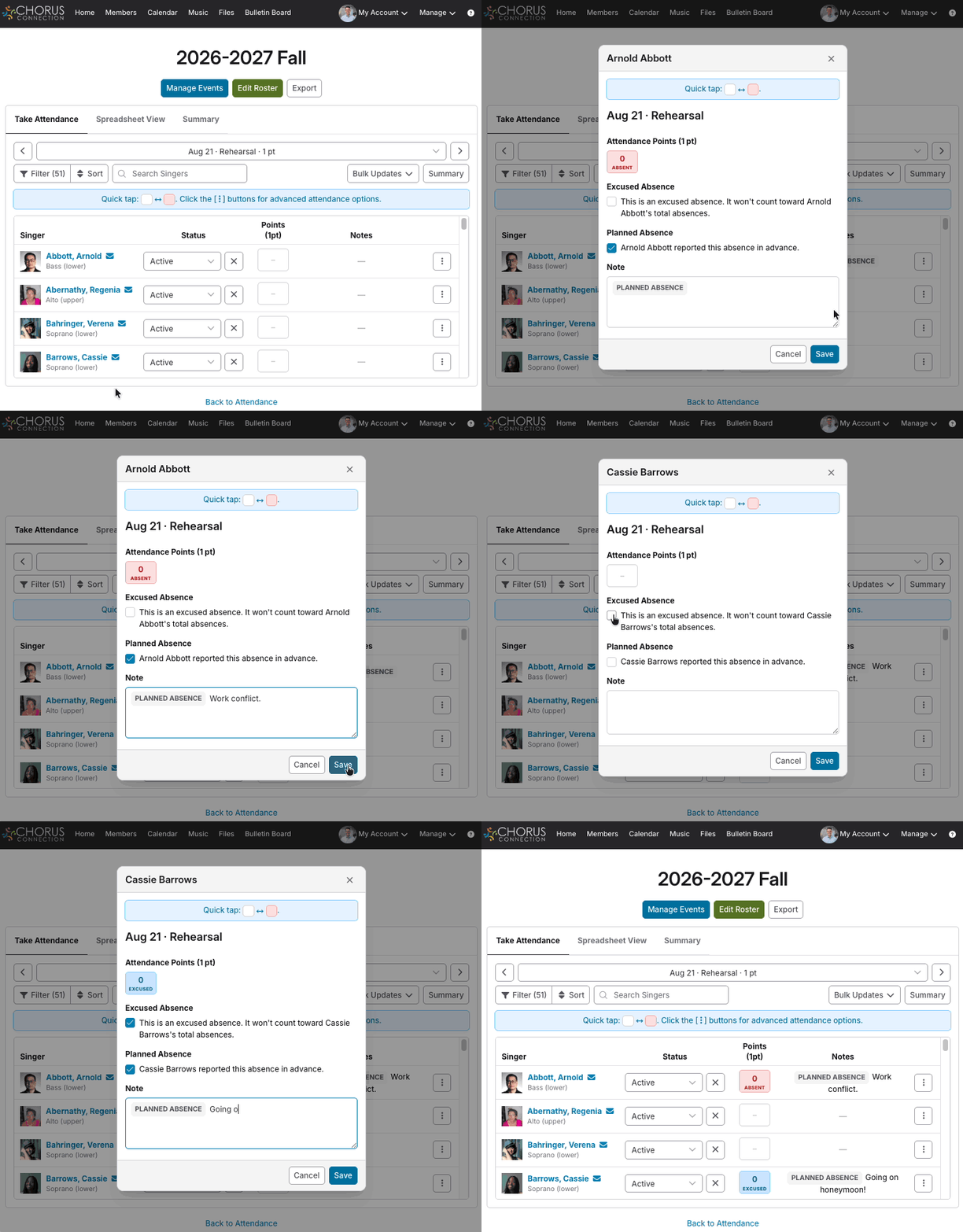
- Planned absences: Know in advance that someone can’t make it to a future rehearsal? Go to the future date in attendance. Tap the member's point box for that date to give them 0 points. The system recognizes that an absence marked on a future date is a planned absence. When that day arrives and you're taking attendance at rehearsal, their planned absence will be clearly flagged, so you won't waste time looking for them. You can always tap the [︙] button to make changes.
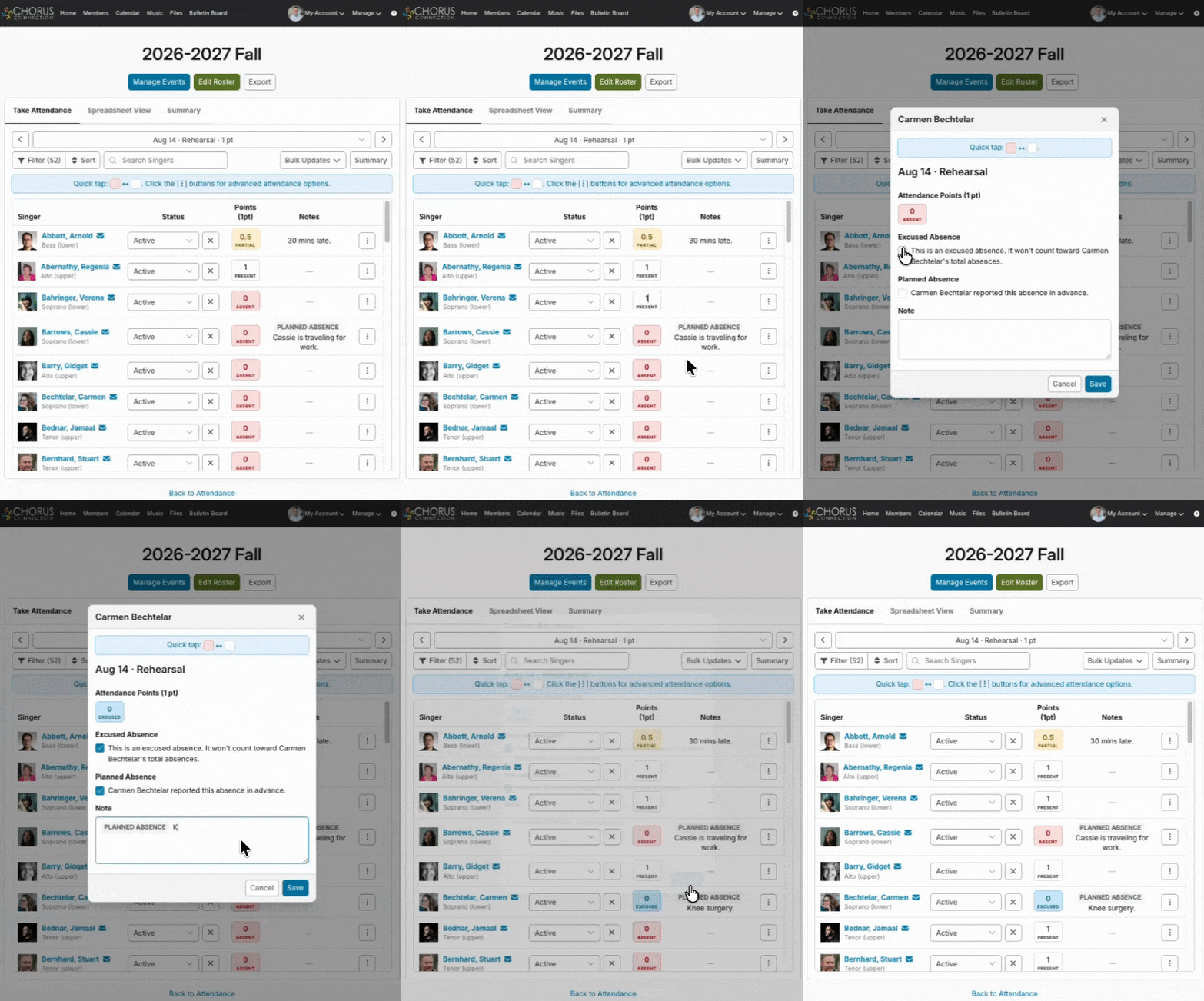
- Excused absences: Tap the [︙] button on a member’s attendance row to see the additional options. You can mark an absence as excused so it doesn't count against them in their absence total. Note: This can be useful for singers who joined mid-concert-cycle so the rehearsals before they joined don’t count toward your attendance policy.
- Attendance Notes: Tap the [︙] button on a member’s row to see the additional options. You can make notes regarding the member's attendance or absence that day. These notes are visible to all other attendance takers to help make sure everyone is in the loop.
Spreadsheet View
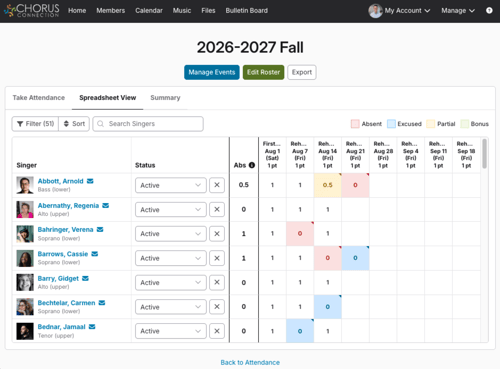
Switch to the Spreadsheet View tab any time you want to see the bigger picture: every rehearsal date for the concert cycle, side by side, for every singer on the roster. Each singer's running count of absences is shown alongside their name.
You can tap any attendance cell to see notes or planned/excused absence details for that date and make quick edits too.
Note: Spreadsheet View is available on desktops or tablets. On phones, we'll point you directly to the Take Attendance view instead.